
How to Clean Cookies Before Starting Your Web Journey
In the digital age, cookies play a significant role in how we interact with websites. These small files are stored on your computer and help to remember information about your visits online. However, there are times when cleaning cookies becomes necessary, especially before launching a new web project or when you want to ensure privacy and optimize performance. In this guide, we’ll walk you through the steps to effectively clean cookies across various browsers, why it’s important, and how it can benefit your overall web experience.
What Are Cookies?
Cookies are small data files created by websites you visit. They store information about your session, such as login credentials, user preferences, and tracking data. While cookies are crucial for enhancing user experience, they can also be a source of privacy concerns and can affect website performance if not managed properly.
Why You Should Clean Cookies
Cleaning cookies is essential for several reasons:
- Privacy Protection: Regularly removing cookies helps protect your personal data from being accessed by unauthorized parties.
- Improved Performance: Over time, accumulated cookies can slow down your browser. Cleaning them can enhance browser speed.
- Resolution of Issues: Sometimes, cookies may cause website malfunctions or prevent you from accessing certain features. Clearing them can resolve these problems.
- Testing New Projects: When launching a new website, it’s important to ensure that the data being displayed is accurate. Cleaning cookies can prevent cached data from affecting the user experience.
How to Clean Cookies in Popular Browsers
Google Chrome
- Open Chrome.
- Click on the three-dot menu in the top-right corner.
- Go to Settings.
- Scroll down and click on Privacy and security.
- Select Clear browsing data.
- In the dialog that appears, check the box next to Cookies and other site data and choose a time range.
- Click on Clear data.
Mozilla Firefox
- Open Firefox.
- Click on the hamburger menu (three horizontal lines) in the top-right corner.
- Select Settings.
- Go to the Privacy & Security panel.
- Scroll down to the Cookies and Site Data section and click Clear Data….
- Check Cookies and Site Data and then click Clear.
Safari (for macOS)
- Open Safari.
- In the top menu, click on Safari and select Preferences.
- Go to the Privacy tab.
- Click on Manage Website Data….
- Click Remove All to delete all cookies, or select individual sites and click Remove for specific cookies.
Microsoft Edge
- Open Microsoft Edge.
- Click on the three-dot menu in the top-right corner.
- Select Settings.
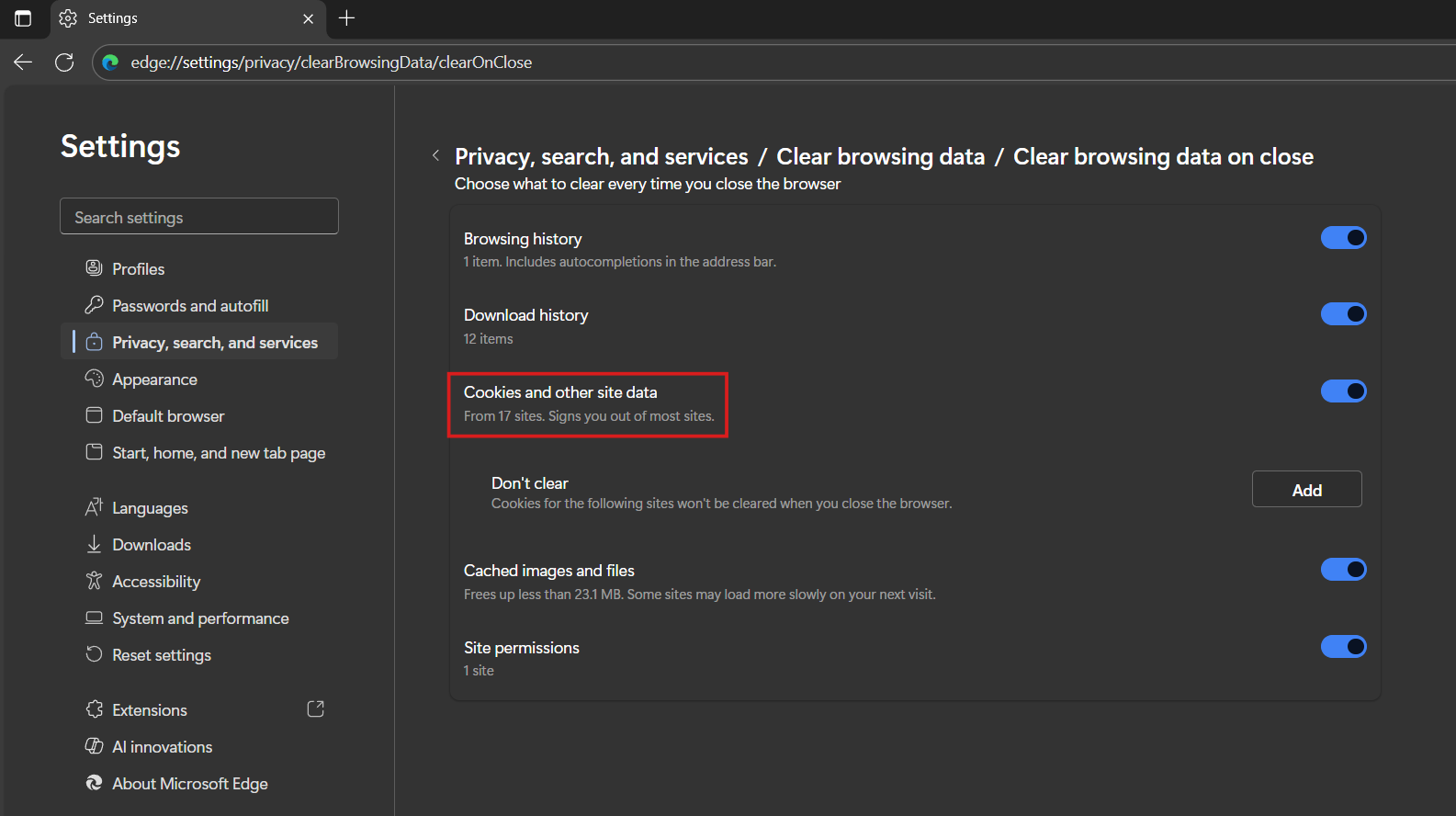
- Click on Privacy, search, and services.
- Scroll down to Clear browsing data and click Choose what to clear.
- Check Cookies and other site data and choose a time range

, then click Clear now.
Best Practices for Managing Cookies
To maintain a healthy browsing experience, consider the following best practices:
- Regular Cleaning: Set a schedule to clear your cookies every few weeks to avoid clutter and maintain privacy.
- Use Private Browsing: When visiting new sites or conducting sensitive searches, consider using incognito or private mode to limit cookie storage.
- Stay Informed: Be aware of the cookie policies of the websites you frequently visit and adjust your browser settings accordingly.
Conclusion
Cleaning cookies is a vital part of maintaining privacy, optimizing performance, and ensuring a smooth browsing experience. By following the steps outlined for different browsers, you can easily manage your cookie data. Remember, a clean browser is not just about speed; it’s also about securing your personal information as you navigate the web. Take control of your online presence by regularly cleaning your cookies and enjoying a more efficient web journey.
For more detailed information on this subject, you can visit the following link: How to Clean Cookies Before Launching a New BM https://crazyfb.shop/en/page/kak-ochistit-cookies-pered-zapuskom-novogo-bm